
How to Cancel Subscription Whether you’re taking a break from streaming or switching to another OTT platform, canceling your Netflix subscription is a simple process. In this guide, we’ll show you exactly how to cancel your Netflix membership on mobile, desktop, and smart TVs.
1. How to Cancel Netflix Subscription:
Netflix is one of the most popular streaming services worldwide, offering thousands of movies, TV shows, documentaries, and exclusive original content. Millions of users subscribe to Netflix for entertainment across multiple devices. However, there may come a time when a user decides to cancel their subscription due to budget concerns, lack of usage, or a desire to explore other streaming platforms. Fortunately, Netflix makes the cancellation process simple and user-friendly. Users can manage their membership directly from their account settings without contacting customer support. This guide explains the complete cancellation process in a few easy steps.
Steps:
- Visit Netflix and sign in.
- Click your profile icon.
- Select Account.
- Under Membership & Billing, click Cancel Membership.
- Choose Finish Cancellation.
- Check your email for confirmation.
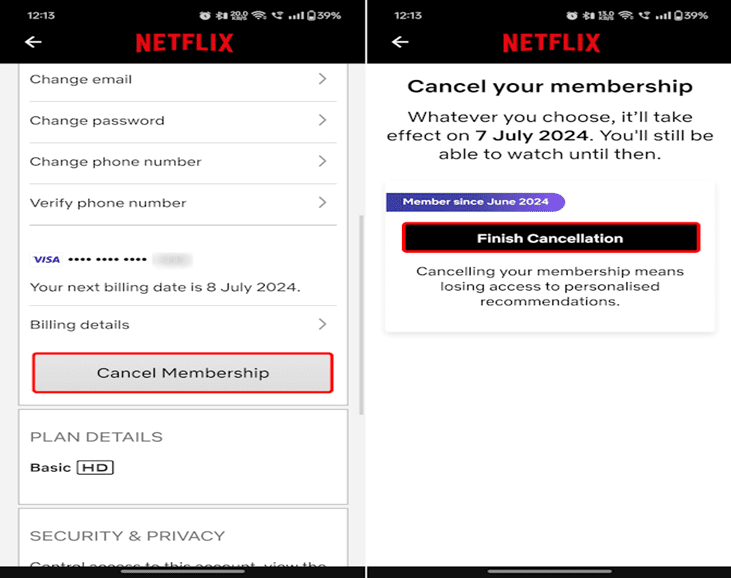
Your Netflix access remains active until the end of the current billing cycle.
2. How to Cancel YouTube Premium Subscription:
YouTube Premium provides an enhanced viewing experience by removing advertisements, enabling background playback, and allowing offline downloads. While these features are useful for many users, some may choose to cancel their subscription due to changing entertainment preferences or cost considerations. The cancellation process is straightforward and can be completed through the YouTube website or mobile application. Users can continue enjoying Premium benefits until the current billing cycle expires. Following the correct steps ensures that future charges are avoided while maintaining access for the remaining subscription period.
Steps:
- Open YouTube and sign in.
- Click your profile picture.
- Select Purchases and Memberships.
- Find YouTube Premium.
- Click Manage Membership.
- Select Deactivate → Continue to Cancel.
- Confirm cancellation.
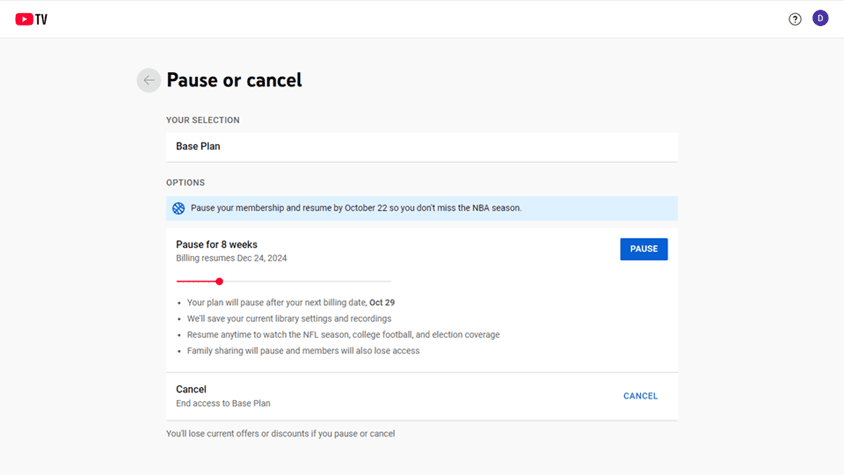
Premium benefits continue until the billing period expires
3. How to Cancel Disney+ Subscription:
Disney+ has become a leading streaming platform by offering access to popular franchises such as Marvel, Star Wars, Pixar, and National Geographic. The service provides entertainment for viewers of all ages through a wide collection of movies and television series. Although many users enjoy the platform, there may be occasions when they wish to discontinue their subscription. Whether the decision is based on budget management or reduced usage, Disney+ provides a simple cancellation process. By following the steps below, users can quickly manage their membership and prevent future charges.
Steps:
- Log in to Disney+.
- Click your profile icon.
- Open Account Settings.
- Select your Disney+ subscription.
- Click Cancel Subscription.
- Follow the prompts and confirm.
- Save the cancellation confirmation.
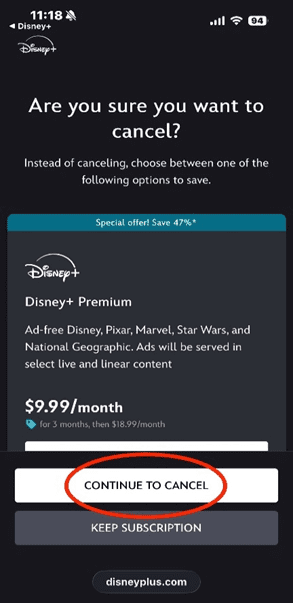
You can continue streaming until the current subscription period ends.
4. How to Cancel Amazon Prime Video Subscription:
Amazon Prime Video is a popular streaming platform that offers movies, television shows, and exclusive original productions. It is often bundled with Amazon Prime membership, which includes additional benefits such as faster shipping and special shopping discounts. While the service provides significant value, some users may decide to cancel due to changing viewing habits or budget considerations. Amazon offers convenient subscription management tools that allow users to cancel their membership online. Following the proper steps helps ensure a smooth cancellation process without unexpected billing issues.
Steps:
- Sign in to your Amazon account.
- Go to Accounts & Lists.
- Select Prime Membership.
- Click Manage Membership.
- Choose End Membership.
- Follow Amazon’s confirmation process.
- Confirm cancellation
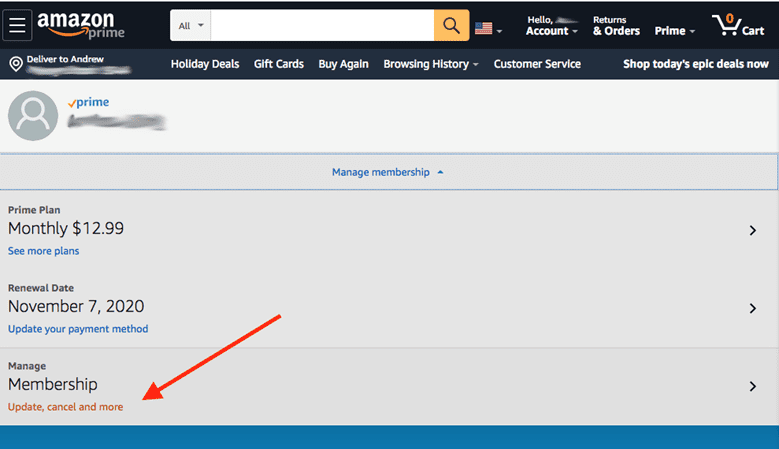
Depending on your plan and usage, Amazon may offer a partial refund in some cases.
5. How to Cancel Disney+ Hotstar Subscription:
Disney+ Hotstar is one of the most widely used streaming platforms in India, offering movies, television series, live sports, and regional entertainment content. The platform attracts millions of subscribers through its diverse library and sports coverage. However, users may occasionally decide to cancel their subscription due to personal preferences, reduced usage, or financial reasons. Depending on how the subscription was purchased, cancellation may need to be completed through Hotstar directly or through a third-party provider. Understanding the correct process can help users avoid unwanted renewal charges.
Steps:
- Open the Disney+ Hotstar app or website.
- Log in to your account.
- Go to My Account.
- View your subscription details.
- If subscribed through a third party (Google Play, Apple App Store, Jio, Airtel, etc.), open that provider’s subscription settings.
- Select Cancel Subscription.
- Confirm cancellation.
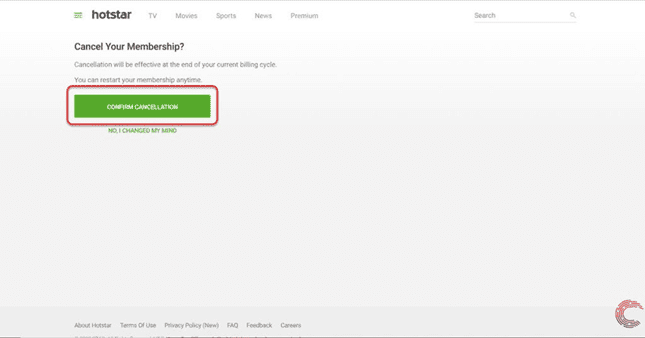
Many Hotstar subscriptions in India are managed through telecom providers or app stores, so cancellation may need to be completed through the original payment source.
Also read the Hidden gems on prime video India
Also read the 9 Brutal Action Thriller Movies on OTT That Go Hard From Start to Finish (2026)
For more Info, Please Visit the Netflix , Zee 5, Prime Video